
HTML
How to download HTMl Editors
How to use HTML tags
How to Comment in HTML
How to create an HTML link
How to link to a specific part of a page HTML
How to Insert Images with HTML
How to insert audio in HTML
How to insert videos in HTML
How to use Table Tag in HTML
How to Use HTML List Elements
How to use HTML Iframe
How to use HTML Symbols
How to use HTML Color Codes
How to Create HTML Form
How to learn HTML
CSS
How to use CSS Background
JS
PHP
How to redirect to another page using PHP
How to get last inserted id in MySQL using PHP
How to learn php
How to insert a row into database by using PHP
How to fetch data from table by using php
How to print table data by using while loop in php
How to perform search operation into database by using php
MySQL
How to create Table in PHP MySQL?
How to Insert Data Into MySQL Database Table Using PHP?
How to Select Data from MySQL Database Tables Using PHP
How to Update data in MySQL Database Table using PHP
How to Delete Data from MySQL using PHP
How to make MySQL query ORDER BY conditions
How to Select LIMIT data in PHP MySQL
SQL
BOOTSTRAP
AJAX
DATATABLE
SEO
EARNING
YOUTUBE
WordPress
How to Install WordPress?
How to use WordPress Dashboard?
How to Install Plugins in WordPress?
How to Customize WordPress Plugins?
How to Change General Settings in WordPress?
How to Change Writing Settings in WordPress
How to Setup the Reading Settings in WordPress
How to Setup the Discussion Settings in WordPress
How to Setup the Media Settings in WordPress
How to Setup the Permalink Settings in WordPress
How to Setup the Plugin Settings in WordPress
How to Add Categories to WordPress
How to Edit Category in WordPress
How to Delete Category in WordPress
How to Arrange Category in WordPress
How to Add a new Post in WordPress
How to Edit Post in WordPress
How to Delete Post in WordPress
How to Review Post in WordPress
How to add Media in WordPress
How to Edit Media in WordPress
How to add a Page in WordPress
How to Delete Media in WordPress
How to Add Page in WordPress
How to Edit Pages in WordPress
How to Learn WordPress
How to Delete Page in WordPress
How to add New Tag in WordPress
How to Edit Tags in WordPress
How to Delete Tags in WordPress
How to Add Comments in WordPress
How to Edit Comments in WordPress
How to Moderate Comments in WordPress
How to Add User in WordPress
How to Edit User in WordPress
How to Delete User in WordPress
How to Manage WordPress Themes
How to Customize Theme in WordPress
How to Manage Widget in WordPress
How to Change Background in WordPress
How to Transfer Host in WordPress
How to Update Version in WordPress
Answer: Installing WordPress is one of the easiest things for any one, one can easily install WordPress only in five minutes, follow the steps for easy installation of WordPress:
Step:1- Download the most current version of WordPress Packages.
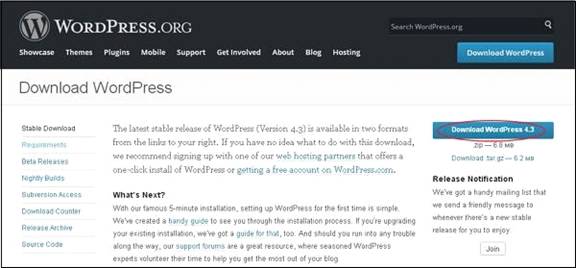
Step:2- Create a new MySQL Database for your WordPress site
Step:3- Set Up Wizard
The following steps describe how to set up WordPress locally on your system.
Step-1: Extract the downloaded WordPress folder and upload it to your web server or localhost.
Step-2: Open your browser and navigate to your WordPress file path, then you will get the first screen of the WordPress installer as shown in the following screen.
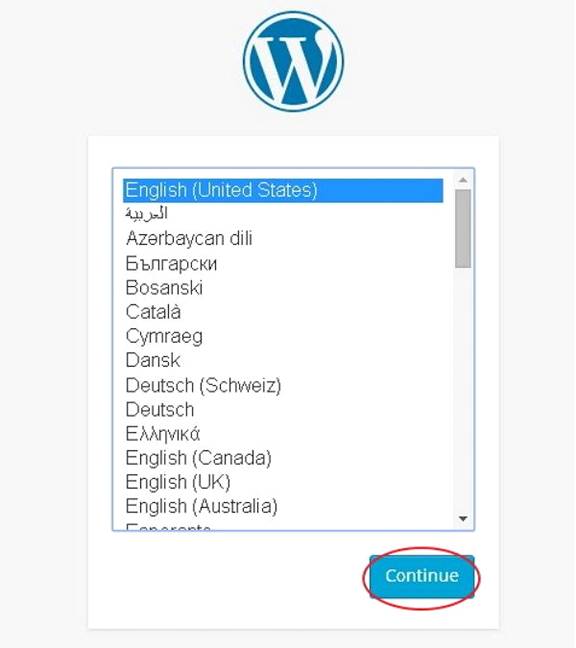
Select any language for the WordPress you want and click on Continue.
Note: You will change this language later if you want from your admin section.
Step-3: Now, you will see a screen with some items name which you need to know before further process
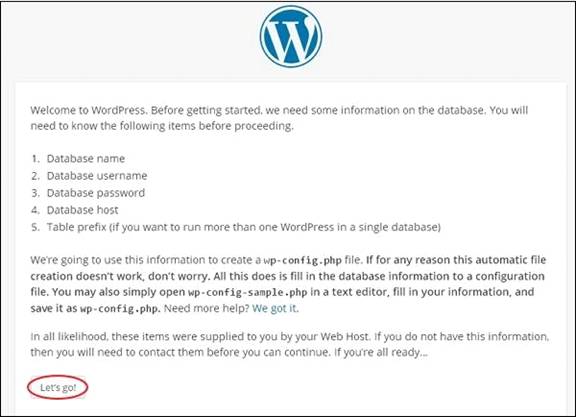
Click on Let's go!
Step-4: Enter the information about the database.
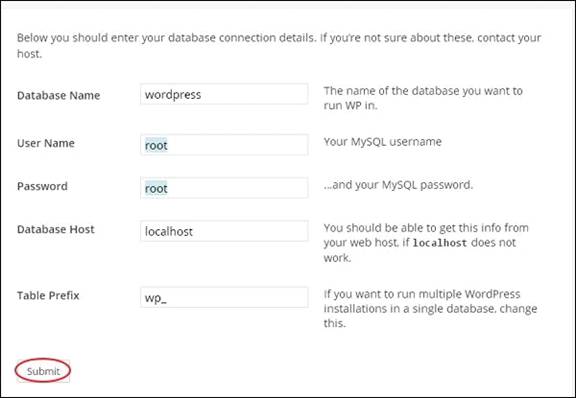
Now after filling correct information of your database click on Submit
Step-5: Last steps is for confirmation
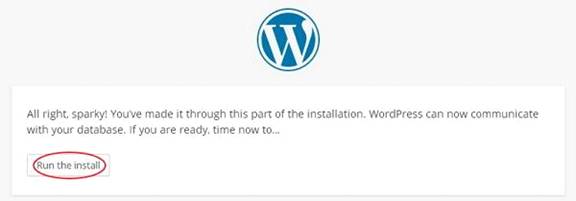
Click on Run the install!
Step-6: Enter administrative information, Like Site title, user name, Password twice, email etc.
After successful Installation of WordPress, you will get a screen like this.

Click on Login Button!
Now! you will get an Admin Panel Screen enter the username and password correctly which you mention in administrative information.
Almost Done!
