
WP - Overview
WP - Download
WP - Installation
WP - Dashboard
WP - Install Plugins
WP - Customize Plugins
WP - General Setting
WP - Writing Setting
WP - Reading Setting
WP - Discussion Setting
WP - Media Setting
WP - Permalink Setting
WP - Plugin Setting
WP - Add Category
WP - Edit Category
WP - Delete Category
WP - Arrange Category
WP - Add New Post
WP - EDIT POST
WP - Delete Posts
WP - Preview Posts
WP - Media Library
WP - Add Media
WP - Edit Media
WP - Delete Media
WP - Add Pages
WP - Edit Pages
WP - Publish Pages
WP - Delete Pages
WP - Add Tags
WP - Edit Tags
WP - Delete Tags
WP - Links
WP - Add Comments
WP - Edit comments
WP - Moderate Comments
WP - User Roles
WP - Add Users
WP - Edit User
WP - User Photo
WP - Delete Users
WP - Personal Profile
WP - Theme Management
WP - Customize Theme
WP - Widget Management
WP - Background
WP - Host Transfer
WP - Version Update
WP - Spam Protection
WP - Optimization
WP - Reset Password
WP - Backup
WP - Restore
If you want to delete one of your Pages or Posts, click on the Trash link that appears beneath the title when hovering your cursor over each row.
This will move the Page/Post to the Trash.

To delete the Page/Post permanently or to restore the Page/Post, click the Trash link at the top of the screen. When the cursor is hovering over each item in the Trash, the Restore and Delete Permanently links appear.
Click Delete Permanently to permanently remove a single Page or Post and Clicking Restore will restore the Page or Post.
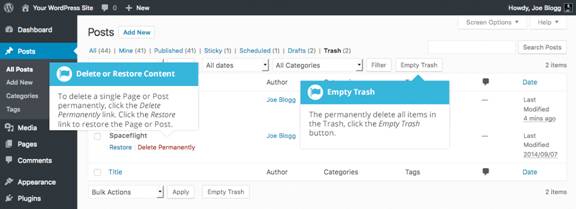
If you would like to permanently delete or restore numerous items at once, click the checkboxes next to the items you would like to delete or restore and then choose either Restore or Delete Permanently from the Bulk Actions dropdown list at the top of the page.
After selecting the appropriate action click the Apply button to make your change. Alternatively, click the Empty Trash button to delete all the items in the Trash.
