
WP - Overview
WP - Download
WP - Installation
WP - Dashboard
WP - Install Plugins
WP - Customize Plugins
WP - General Setting
WP - Writing Setting
WP - Reading Setting
WP - Discussion Setting
WP - Media Setting
WP - Permalink Setting
WP - Plugin Setting
WP - Add Category
WP - Edit Category
WP - Delete Category
WP - Arrange Category
WP - Add New Post
WP - EDIT POST
WP - Delete Posts
WP - Preview Posts
WP - Media Library
WP - Add Media
WP - Edit Media
WP - Delete Media
WP - Add Pages
WP - Edit Pages
WP - Publish Pages
WP - Delete Pages
WP - Add Tags
WP - Edit Tags
WP - Delete Tags
WP - Links
WP - Add Comments
WP - Edit comments
WP - Moderate Comments
WP - User Roles
WP - Add Users
WP - Edit User
WP - User Photo
WP - Delete Users
WP - Personal Profile
WP - Theme Management
WP - Customize Theme
WP - Widget Management
WP - Background
WP - Host Transfer
WP - Version Update
WP - Spam Protection
WP - Optimization
WP - Reset Password
WP - Backup
WP - Restore
Following are the steps for Theme Management to WordPress.
Step:1 − Select Appearance → Themes from the dashboard.

Step:2 − The following screen will be displayed. Hover over any theme and click on Theme Details.

Step:3− When you click on Theme Detail the following page appears. It consists of details related to the theme. Details like version, description, tags etc.
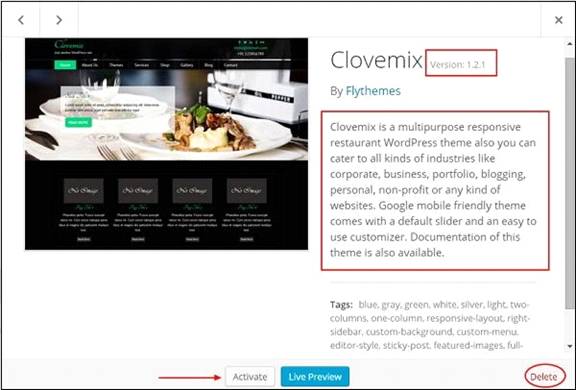
If you want to add this theme to your page/website then click on Activate, and if you want to just check the theme, then click on Live Preview.
