
WP - Overview
WP - Download
WP - Installation
WP - Dashboard
WP - Install Plugins
WP - Customize Plugins
WP - General Setting
WP - Writing Setting
WP - Reading Setting
WP - Discussion Setting
WP - Media Setting
WP - Permalink Setting
WP - Plugin Setting
WP - Add Category
WP - Edit Category
WP - Delete Category
WP - Arrange Category
WP - Add New Post
WP - EDIT POST
WP - Delete Posts
WP - Preview Posts
WP - Media Library
WP - Add Media
WP - Edit Media
WP - Delete Media
WP - Add Pages
WP - Edit Pages
WP - Publish Pages
WP - Delete Pages
WP - Add Tags
WP - Edit Tags
WP - Delete Tags
WP - Links
WP - Add Comments
WP - Edit comments
WP - Moderate Comments
WP - User Roles
WP - Add Users
WP - Edit User
WP - User Photo
WP - Delete Users
WP - Personal Profile
WP - Theme Management
WP - Customize Theme
WP - Widget Management
WP - Background
WP - Host Transfer
WP - Version Update
WP - Spam Protection
WP - Optimization
WP - Reset Password
WP - Backup
WP - Restore
Overview: WordPress Plugin is a typical software that can be uploaded to expand the functionality of your site.Plugins are used to make your work easier and it's very easy to install a wp plugin.
Following are the simple steps to add plugins.
How to Go: On the left side bar, Click on Plugins → Installed Plugins as shown on the screen.
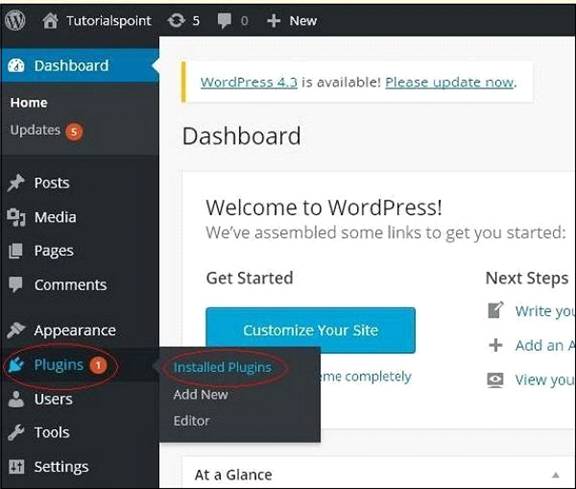
you can view the already installed plugins.

Now Click on → Plugins → Add New menu as shown in the following screen.

A list of plugins appears that are used in WordPress. Here you can directly install plugins from the available list or you can upload it by clicking on Upload Plugin.
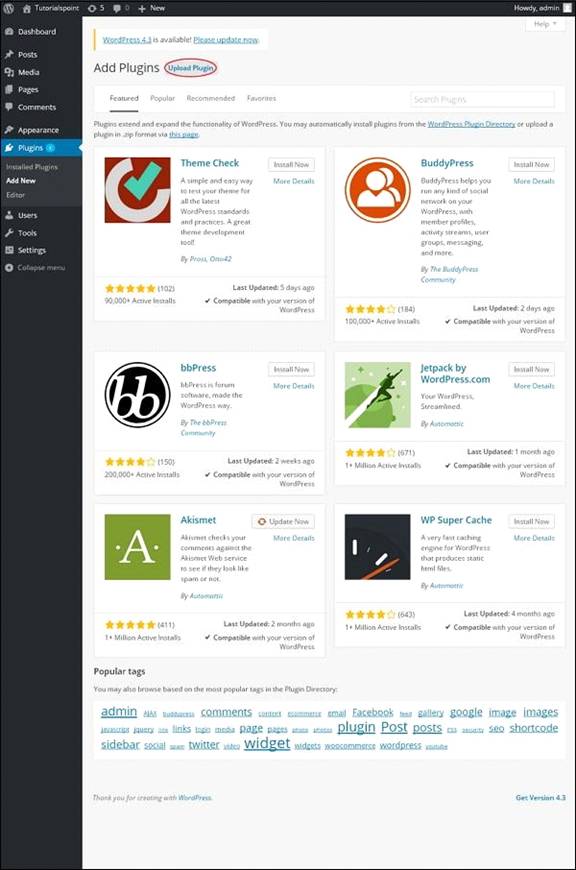
When you click on Upload Plugin you'll get the following page.
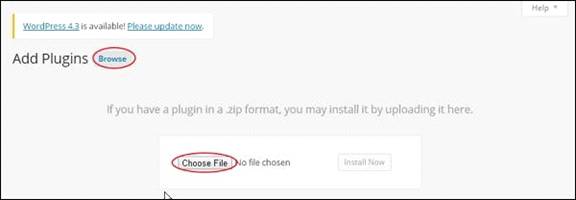
Click on Browse, it goes back to the page where you can select plugins from WordPress site. And if you click on Choose File, you can add files from your system.
Otherwise, you can directly choose the plugin that you need and click on Install now as seen in the following screenshot.

When you click on Install Now, the package starts to download and gets installed. Then, click on Activate plugin to active that plugin to use in WordPress as seen in the following screen.

After clicking on Activate Plugin you'll get a message as Plugin activated and you can also find the installed plugin in the list.

Below the plugin activated message, you can view few options such as All, Active, Inactive and Update available.
When you click on Active the following page appears. Here you can view all the activated plugins.

When we click on Inactive, the plugins which are available but are not activated gets displayed. You can activate this plugin by clicking on Activate.

When you click on Update available, you'll get a list of plugins that must be updated. Click on Update and you get a message as Updated.

Click on Bulk Actions and select any of the options.
Click on Apply button to update, delete, activate or deactivate each of the plugins by checking the boxes.

In Search Installed Plugins you can just type your plugin name in the text box that is already installed and click on the Search Installed Plugins button.

When you click on the Search installed Plugin button you get the following page with your respective plugin.

Click on Plugins → Editor from the side bar.
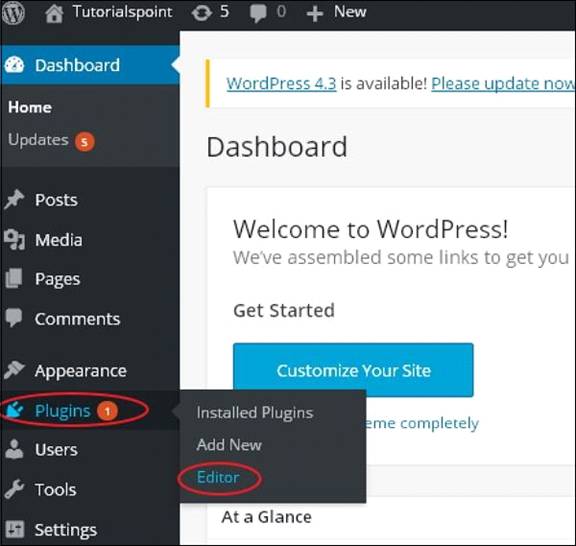
The following page gets displayed.

This page lets you edit your plugins. A few options are explained.
Select plugin to edit: − Allows you to select a plugin from the dropdown and edit it.
Documentation: − Allows you to select the tools from the dropdown to edit the plugin.
Plugin files: − Allows you to select files from the list and edit accordingly.
Click on Update file.
