
WP - Overview
WP - Download
WP - Installation
WP - Dashboard
WP - Install Plugins
WP - Customize Plugins
WP - General Setting
WP - Writing Setting
WP - Reading Setting
WP - Discussion Setting
WP - Media Setting
WP - Permalink Setting
WP - Plugin Setting
WP - Add Category
WP - Edit Category
WP - Delete Category
WP - Arrange Category
WP - Add New Post
WP - EDIT POST
WP - Delete Posts
WP - Preview Posts
WP - Media Library
WP - Add Media
WP - Edit Media
WP - Delete Media
WP - Add Pages
WP - Edit Pages
WP - Publish Pages
WP - Delete Pages
WP - Add Tags
WP - Edit Tags
WP - Delete Tags
WP - Links
WP - Add Comments
WP - Edit comments
WP - Moderate Comments
WP - User Roles
WP - Add Users
WP - Edit User
WP - User Photo
WP - Delete Users
WP - Personal Profile
WP - Theme Management
WP - Customize Theme
WP - Widget Management
WP - Background
WP - Host Transfer
WP - Version Update
WP - Spam Protection
WP - Optimization
WP - Reset Password
WP - Backup
WP - Restore
The Updates page is divided into three sections. If your version of WordPress requires updating, this will be displayed at the top of the page. Below that, you’ll be notified of any plugin updates and below that again, theme updates.
Updating your WordPress version is as simple as clicking the Update Now button. WordPress will download the necessary files, perform a validation of those files and then automatically update your site.
Before updating your site, it’s always wise to perform a backup first, just in case something unfortunate happens during or after the installation.
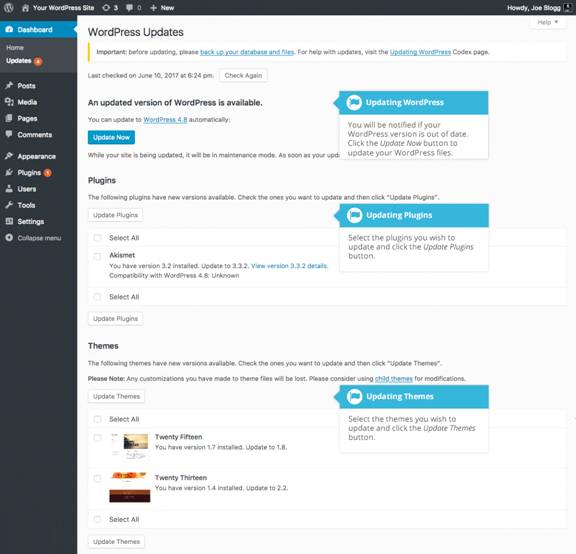
If there are any plugins that can be updated, these will be listed in the Plugins section on the page. To update your plugins, tick the boxes next to each of the plugins you wish to update and then click the Update Plugins button. The new plugin files will be downloaded and automatically installed.
If there are any themes that can be updated, these will be listed in the Themes section on the page. To update your themes, tick the boxes next to each of the themes you wish to update and then click the Update Themes button. The new theme files will be downloaded and automatically installed.
After your site has been updated, no matter whether it’s been done automatically, manually or just themes and plugins, it’s a good idea to give your site a quick test to make sure it’s functioning as expected. This will ensure that the new themes, plugins or even WordPress itself hasn’t introduced new functionality that adversely affects your site or changes how your site operates.
